The quickest way to judge it is to use it.
The sample mock opens straight away, with no account. Use a computer with a keyboard and mouse.
What it looks like
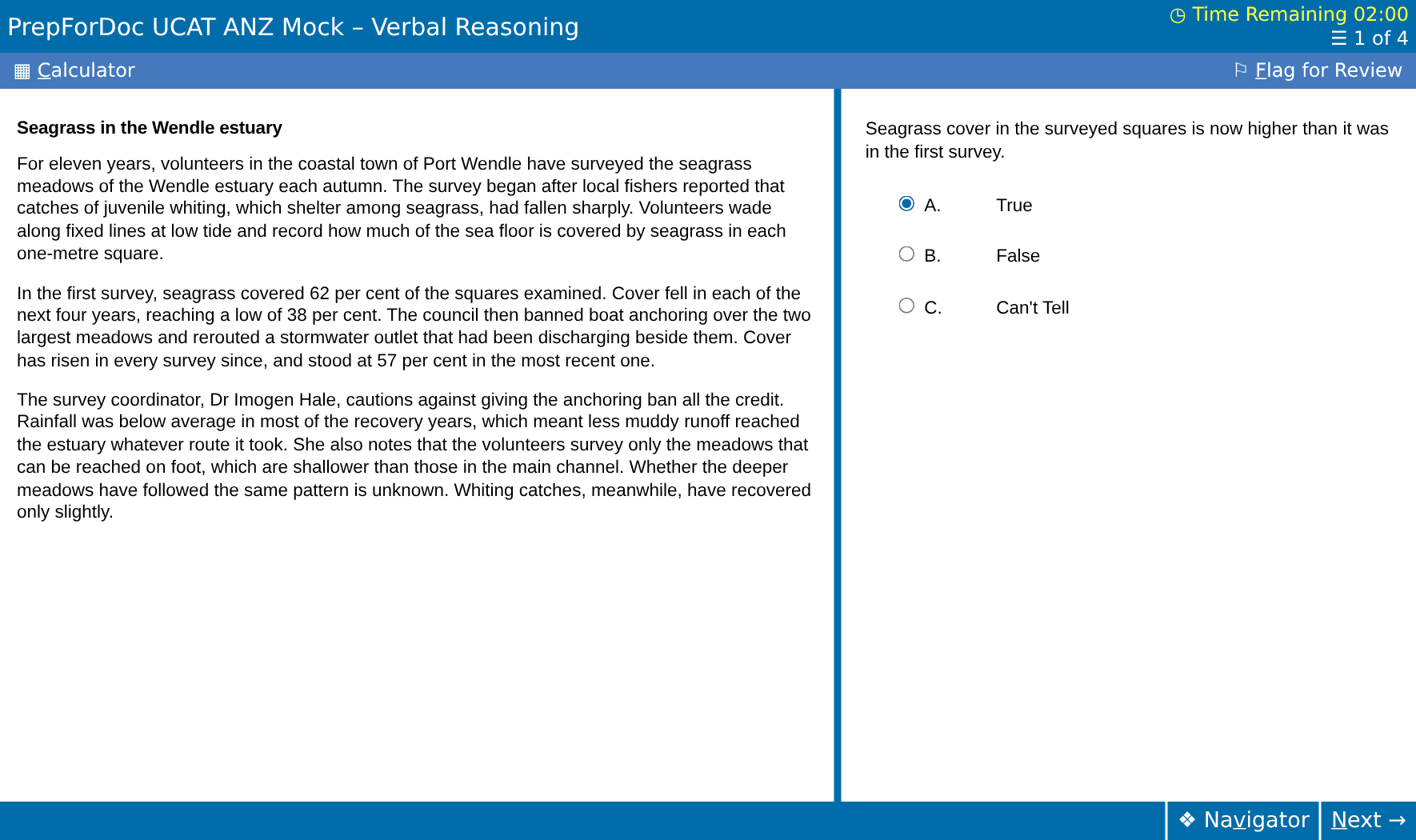
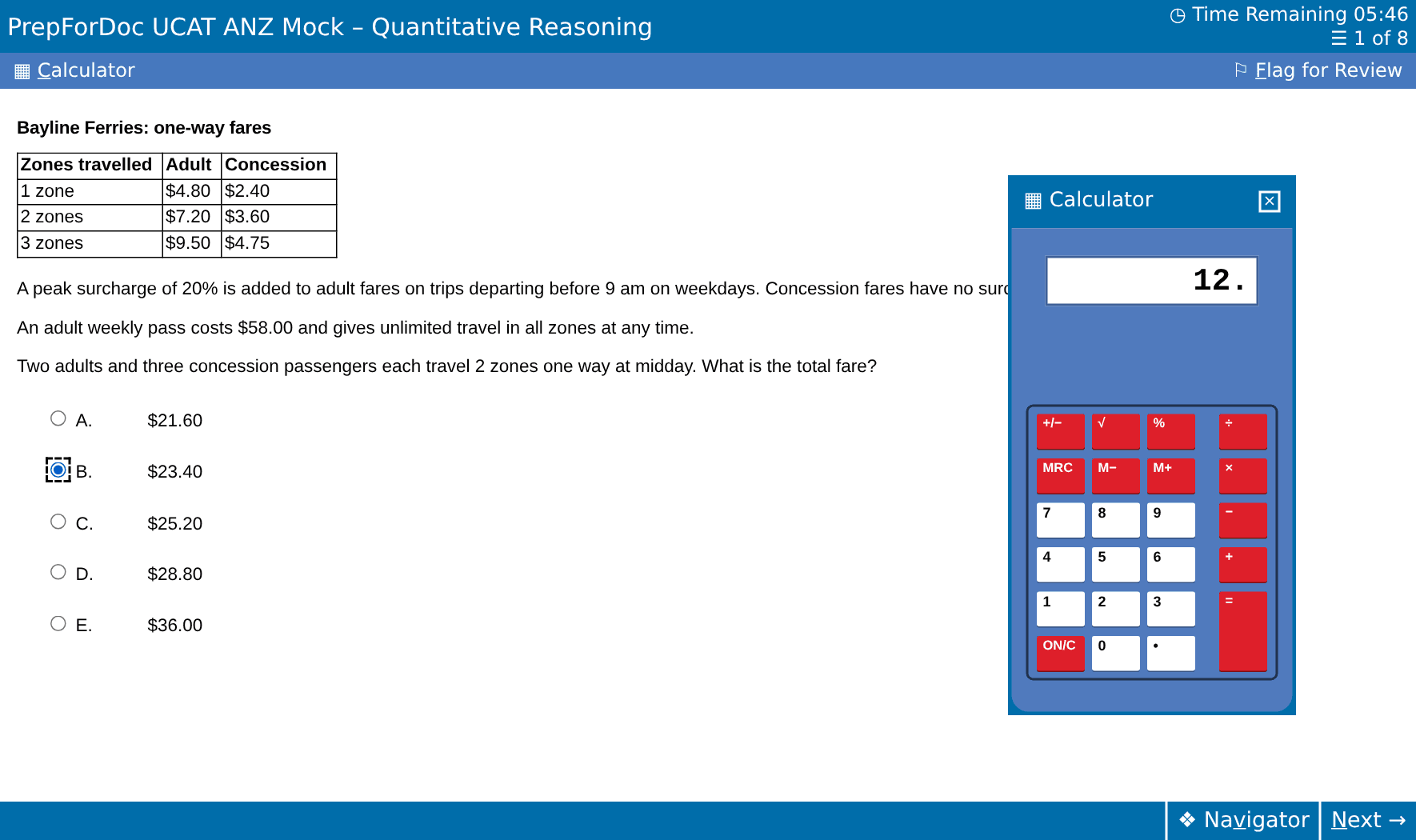
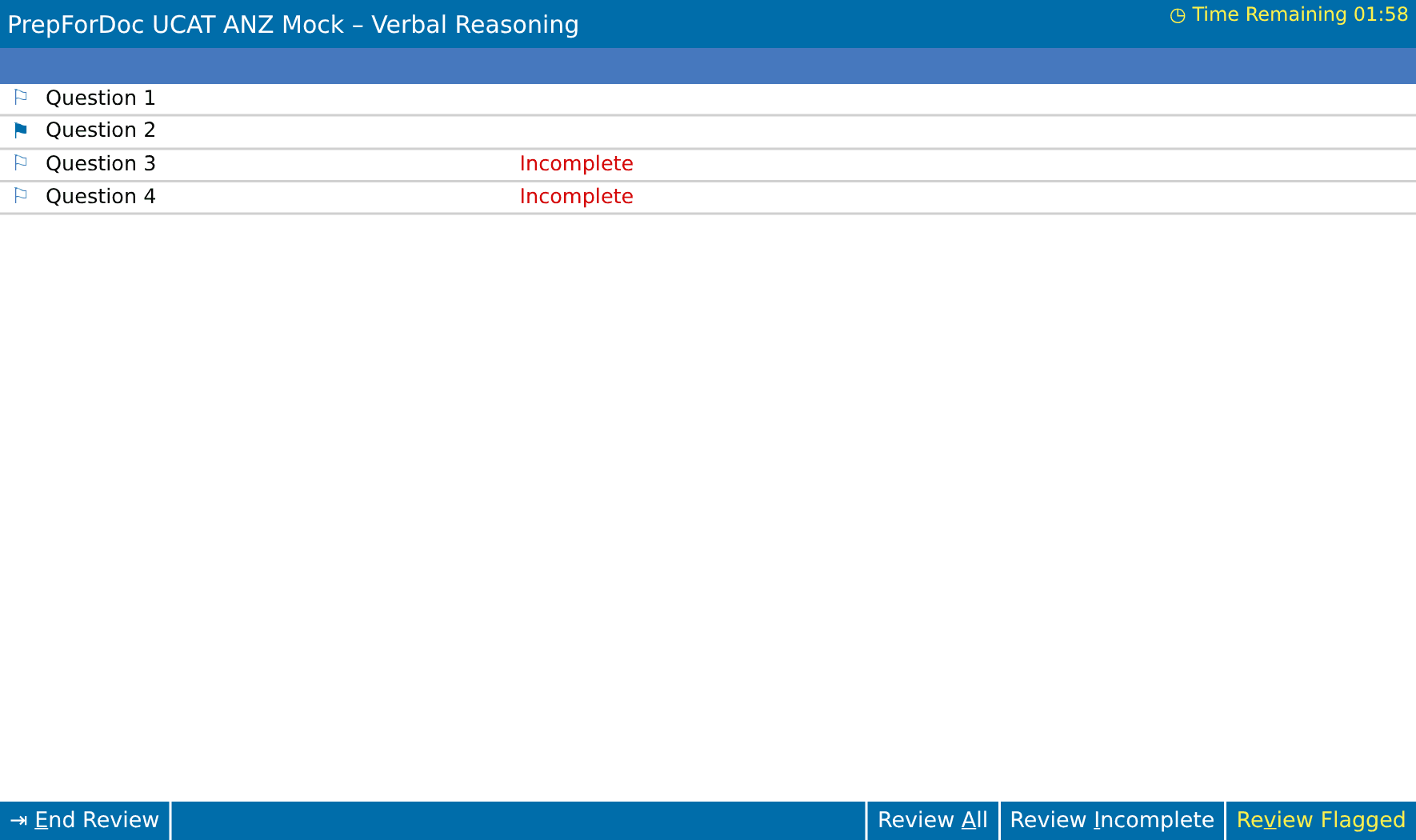
The look is deliberately plain. The real software is not modern, and practising on something sleeker would only make the test feel less familiar.
What works the way the test does
- Separate clocks
- Each subtest has its own countdown at the top right, above the question counter. When it reaches zero the subtest ends.
- Timed instruction screens
- A timed screen before each subtest, which you can leave early with Next.
- One question at a time
- Passages and scenarios sit beside the question in a split screen. Data and decision questions run down a single column.
- The calculator
- A basic four-function calculator in a window you can move. It works through a sum in the order you key it, and has the same memory keys.
- Flag for Review
- Mark a question to come back to, from the button or with Alt+F.
- The Navigator
- A list of every question in the subtest, showing which are unseen, incomplete or flagged.
- The review screen
- At the end of each subtest: every question with its status, and buttons to review all, incomplete or flagged questions.
- Keyboard shortcuts
- Alt+N next, Alt+P previous, Alt+F flag, Alt+C calculator, with the shortcut letter underlined on each button.
- Drag-and-drop answers
- Yes or No statements and most and least appropriate responses are answered by dragging, as in the test.
- Unseen content warning
- A reminder if you press Next before scrolling to the end of a long question.
- Extended time
- Every paper can be sat with 25% extra time.
Why this matters
Most questions allow well under a minute, so seconds lost to the screen are marks lost. Students who meet the calculator, the review screen or the unseen-content warning for the first time in the test centre pay for it. Calculator and keyboard shortcuts explains each tool, and Timing shows how little time each question gets.
What we do not claim
PrepForDoc is independent. It is not affiliated with or endorsed by the UCAT ANZ Consortium or Pearson VUE, and it does not use their software, questions or branding. We built our own screen to behave the same way. The official site has its own free practice tests, and every candidate should use those too.